I Tried iTop Voicy for TikTok Live Sessions:
My Detailed Review After Real Us
About a few months ago I began to do “TikTok Live” sessions, primarily for casual chatting and brief interactive sessions. Everything initially seemed to be fine. However, as I got into it a little bit, I noticed something was off. My content started to sound a little bit repetitive. The way I talked, the way I responded, even the way I would deliver my lines, was all the same each time.
Viewers would join in, stay for some time and just leave my Live Session. Engagement was not terrible but it was not improving. I began to wonder how I could do something during my live sessions to make it more interesting and entertaining without making it too complicated.
I did not want to go through the hassle of editing or taking hours to prepare content. I wanted something that was going to work instantaneously when I was on live. That is when I came across iTop Voicy.
I did some TikTok Live tests to see if it actually worked to make things better. Here is my full experience from what worked and what didn’t to whether it is worth trying.
What Is iTop Voicy?
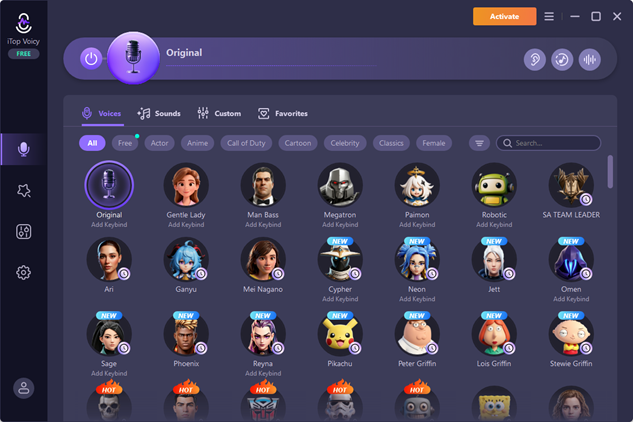
iTop Voicy is a voice changer for PC which allows you to change your voice on the go. The software makes changes to your voice in real time while you are speaking. There is no need to take snapshots of your voice and editing them later. This is a great feature for platforms such as TikTok, Discord, and streaming apps.
It comes with several features, including:
- Real-time voice changing
- AI-based voice effects
- Soundboard with quick audio clips
- Noise reduction for cleaner sound
- Voice recording options
- Custom voice settings
I mainly used it during TikTok Live sessions, but it also works with other platforms.
Why I Decided to Use It for TikTok Live?
My main issue was engagement.
I noticed that people joined my streams but didn’t stay for long. My content wasn’t bad, but it lacked something different. I didn’t want to rely only on visuals or trends — I wanted something that could make my live interaction more interesting.
Another reason was convenience. I didn’t want to edit audio or prepare voiceovers before going live. I needed something that worked instantly.
I also liked the idea of being able to switch voices during reactions, storytelling, or Q&A sessions.
How I Set Up iTop Voicy for TikTok Live?
Here is the exact process I followed to use iTop Voicy for my Tiktok Live Sessions.
Install the Software
I downloaded the installer from the official website and installed it. The setup took just a few minutes, and the app opened without any issues.
Set Up My Microphone
Inside the app, I selected my microphone and tested the input. I spoke normally to check if my voice was being picked up clearly. I adjusted the volume slightly to avoid distortion.
Choose and Test Voice Effects
Before going live, I tested a few voice styles. Some sounded too extreme, so I focused on ones that felt more natural. This step helped avoid awkward moments during the stream.
Connect It to TikTok Live
Since TikTok Live uses system audio input, I selected iTop Voicy as my microphone in my streaming setup.
Once connected, my modified voice worked instantly during the stream.
Amazing Features of iTop Voicy I Used During My Streams
After using the tool for multiple sessions, these were the features I used the most.
Real-Time Voice Changing
This is the main feature, and it worked well for live sessions. I could switch voices while talking without stopping the stream. This made reactions and storytelling more engaging.
There was no noticeable delay, which is important during live interactions.
AI Voice Effects
Some effects sounded more natural than I expected. I mainly used slight variations instead of extreme ones. For example, a deeper tone for storytelling or a lighter tone for funny moments.
Soundboard
The soundboard was surprisingly fun to use.
I added short sound effects during certain moments, like reactions or jokes. It helped break silence and kept the stream lively.
Noise Reduction
TikTok Live can pick up background noise easily.
This feature helped reduce keyboard sounds and other small distractions, making my voice clearer for viewers.
What I Liked About Using It?
After several live sessions, here’s what stood out to me.
- Made Streams More Engaging: Switching voices kept viewers curious. It added something different to each session.
- Easy to Use: I didn’t need technical knowledge to get started. Everything was simple to understand.
- Worked in Real Time: The instant voice change made a big difference during live interactions.
- Didn’t Affect Performance: I was running TikTok Live along with other apps, and my PC still worked smoothly.
What I Didn’t Like About iTop Voicy?
Even though I had a good experience overall, there were a few downsides.
- Some Effects Felt Unrealistic: Not all voice effects are suitable for live use. Some sounded too exaggerated.
- Takes Time to Find the Right Voices: I had to test several options before finding the ones that worked well for my streams.
- Depends on Microphone Quality: Better microphones produce better results. With a basic mic, some effects may not sound as clean.
Who I Think Should Use It?
Based on my experience, this tool is useful for:
- TikTok Live creators
- Streamers
- Content creators
- Gamers
- Users who want more engaging voice interaction
It works best for people who want to add something different to live conversations.
Final Thoughts
After testing iTop Voicy during TikTok Live sessions, I can say it made my streams more interesting without adding extra effort.
The real-time voice changing, simple setup, and variety of effects helped me keep viewers engaged. It’s not perfect, and it takes a bit of testing to find the right voice styles, but once you do, it can make a noticeable difference.
For me, the biggest benefit was being able to change how I sound instantly without interrupting the flow of my live sessions.